Integrations
This document provides instructional, step-by-step content to help you integrate external tools with Brevian.
To learn why it's useful to integrate tools with Brevian, see:
Integrate knowledge bases
Note that only admin users can add or remove knowledge bases and products.
High-level knowledge integration steps
Expand to view
Step 1: Upload a knowledge base
Go to Knowledge > Knowledge Bases, select + Add Knowledge Base, choose the method, and follow the on-screen instructions.
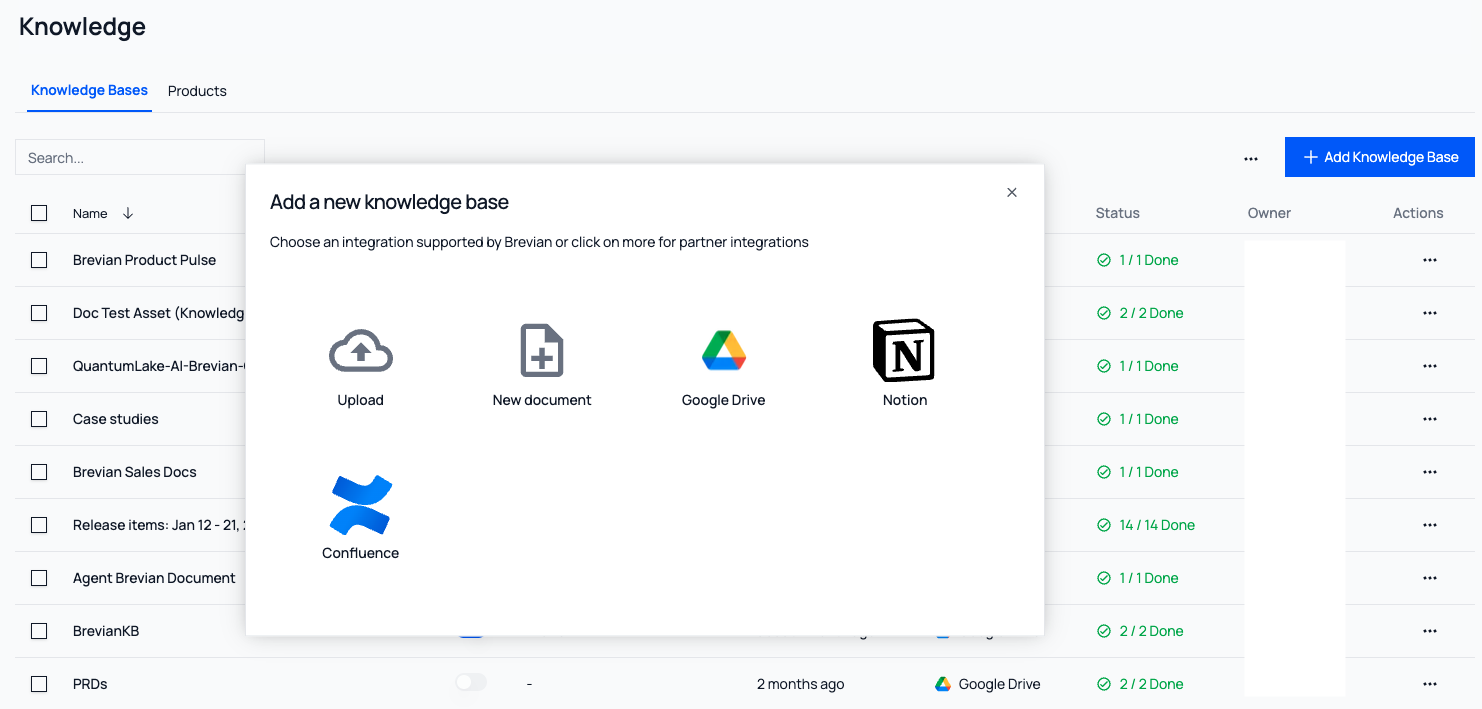
(Optional) Step 2: Create a product
Go to Knowledge > Products, select + Add Product, and follow the on-screen instructions.
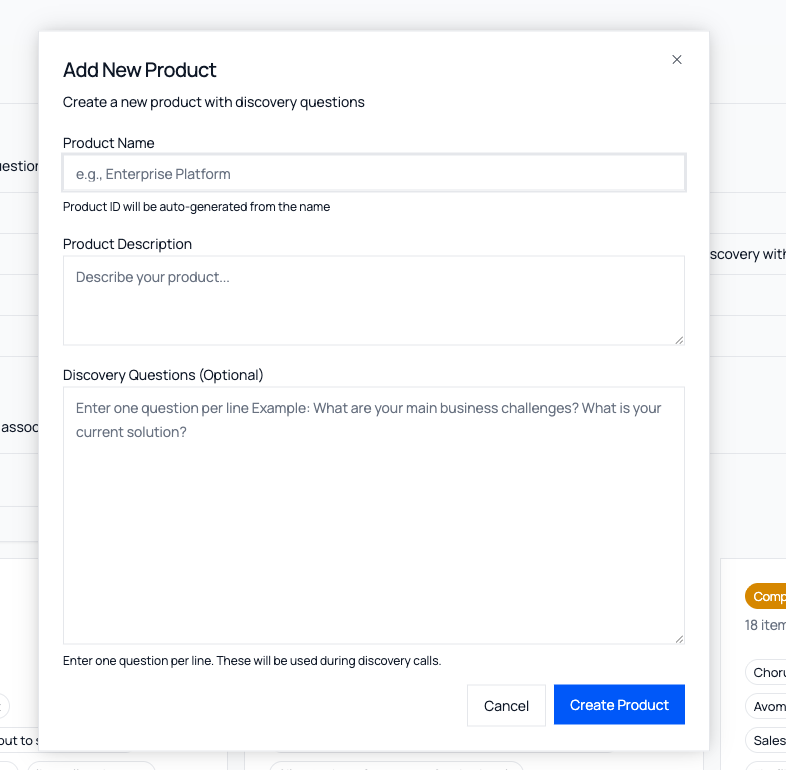
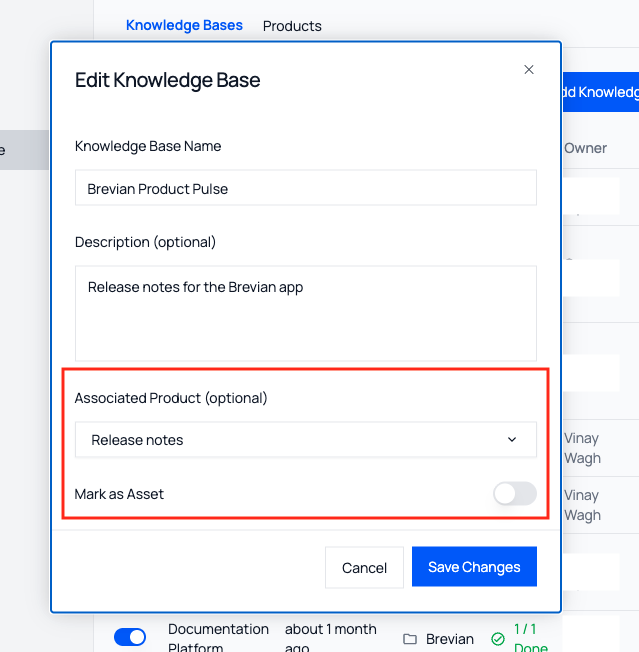
(Optional) Step 3: Mark a knowledge base as an asset
- Go to Knowledge > Knowledge Bases
- Under Actions, select the ellipses for the desired knowledge base and choose Edit
- For Associated Product (optional), select the newly created product
- Enable Mark as Asset, then select Save Changes
Integrate Google Drive
Expand to view
- There are two integration methods for Google Drive:
- OAuth 2.0: Connect using your Google account and select which files or folders Brevian should index.
- Service Account Integration: Connect using a Google Cloud service account key for large-scale or IT-managed access.
- You can only integrate files you have access to, including shared files.
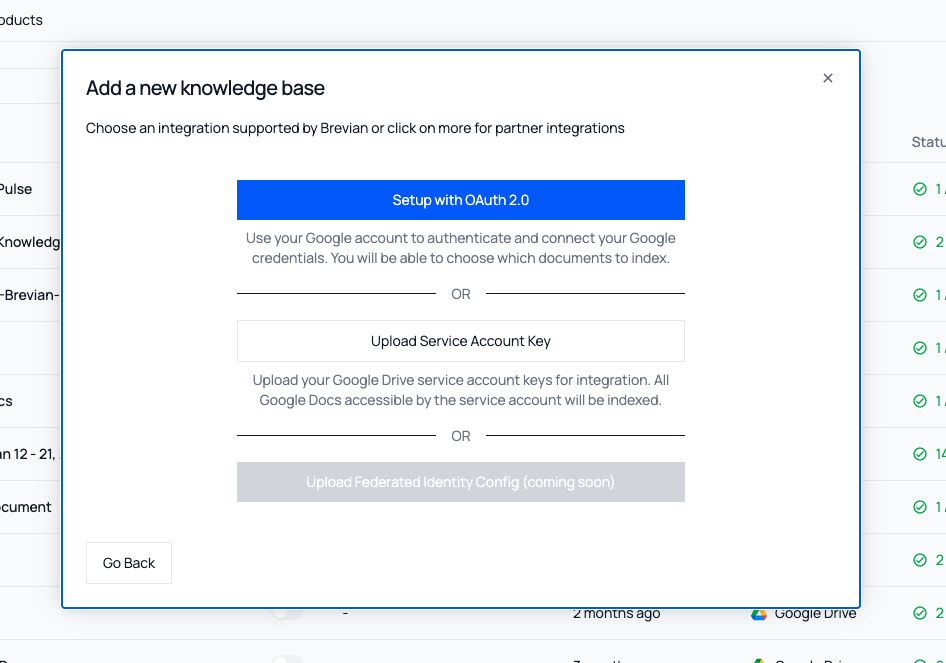
Option 1: Integrate using OAuth
- In the Brevian app, go to Knowledge.
- Select + Add Knowledge Base.
- Select Google Drive.
- Select Setup with OAuth 2.0.
- In the popup, select and sign in to the desired Google workspace account.
- Follow the on-screen instructions to grant Brevian permission to index and sync your account.
- After authorization, you'll return to the Brevian app to select specific files to integrate.
- To select specific files or folders to index, open the Google file picker, and then select the desired files or folders to integrate.
- To select everything your Google account has access to, select Index All Files, and then follow the on-screen instructions.
Option 2: Integrate using a Google service account
To integrate Google Drive with Brevian using a service account, you must first create the service account in Google Cloud and grant it access to the Drive folders you want Brevian to index.
Step 1: Create or select a Google Cloud Project
- Go to the Google Cloud Console: https://console.cloud.google.com
- In the top left, select Select a project, and then select an existing project or create a new project.
- Enter a project name, such as Brevian-Drive-Integration.
- Select Create.
Step 2: Create a service account
- In the Google Cloud Console, go to IAM & Admin > Service Accounts.
- Select Create Service Account.
- Complete the following fields:
- Select Create and Continue.
- You don't need to assign IAM roles unless required by your organization’s security policy.
- Select Done.
Step 3: Generate a JSON key
- From the Service Accounts list, select the newly created service account.
- Select the Keys tab.
- Select Add Key > Create new key.
- Select JSON, and then select Create.
- A .json file will automatically download. This file is required to connect Google Drive to Brevian. Make sure you securely store this file; it grants access to the Google Drive content shared with the service account.
Step 4: Enable the Google Drive API
The service account can't access Google Drive until the Drive API is enabled.
- In the Cloud Console, go to APIs & Services > Library.
- Search for and enable Google Drive API.
Step 5: Share Google Drive folders with the service account
To allow Brevian to index content, you must explicitly share folders with the service account.
- In Google Drive, right-click the folder you want Brevian to index, and then select Share.
- To have Brevian index all subfolders automatically, share the top-level folder, not just individual subfolders. Service accounts respect Google Drive’s permission inheritance, so all nested folders will be indexed automatically.
- Add the service account email address, and then grant Viewer access.
- Editor access is not required.
- The email address resembles the following: brevian-drive-indexer@your-project-id.iam.gserviceaccount.com
- Select Share.
Step 6: Confirm folder access
- Access your Google Drive as a standard user.
- Right-click on the shared folder, and then select Share.
- Confirm that the service account displays as a user with access.
- If the service account does not appear, Brevian will not be able to ingest the folder.
Step 7: Upload the JSON Key into Brevian
- In the Brevian app, go to Knowledge.
- Select + Add Knowledge Base.
- Select Google Drive.
- Select Upload Service Account Key, and then upload the service account JSON key.
- Brevian will begin indexing all supported files in the shared folders, including nested subfolders.
- Follow the on-screen instructions to select desired content to integrate.
Integrate Notion
Expand to view
- There are two integration methods for Notion:
- OAuth 2.0: Connect using your Notion account and select which content Brevian should index.
- Internal Integration Secret: Connect using a Notion API secret for IT-managed access.
- You can only integrate files you have access to.
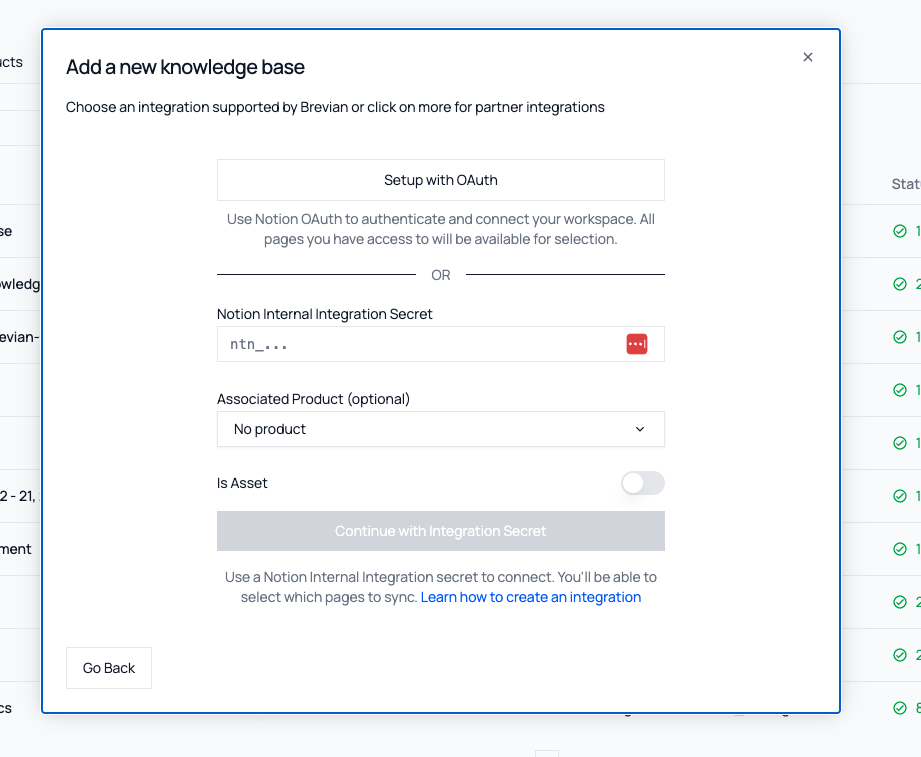
Option 1: Integrate using OAuth
- In the Brevian app, go to Knowledge.
- Select + Add Knowledge Base.
- Select Notion.
- Select Setup with OAuth 2.0.
- In the popup, select and sign in to the desired Notion account.
- Follow the on-screen instructions to grant Brevian permission to index and sync your account.
- After authorization, you'll return to the Brevian app to select specific files to integrate.
- To select specific files or folders to index, open the Google file picker, and then select the desired files or folders to integrate.
Option 2: Integrate using a Notion API secret
- In your Notion account, access the Configuration tab to obtain your integration’s API secret.
- In the Brevian app, go to Knowledge.
- Select + Add Knowledge Base.
- Select Notion.
- Under Notion Internal Integration Secret, enter your API secret, and then select Continue with Integration Secret.
- Follow the on-screen instructions to select desired content to integrate.
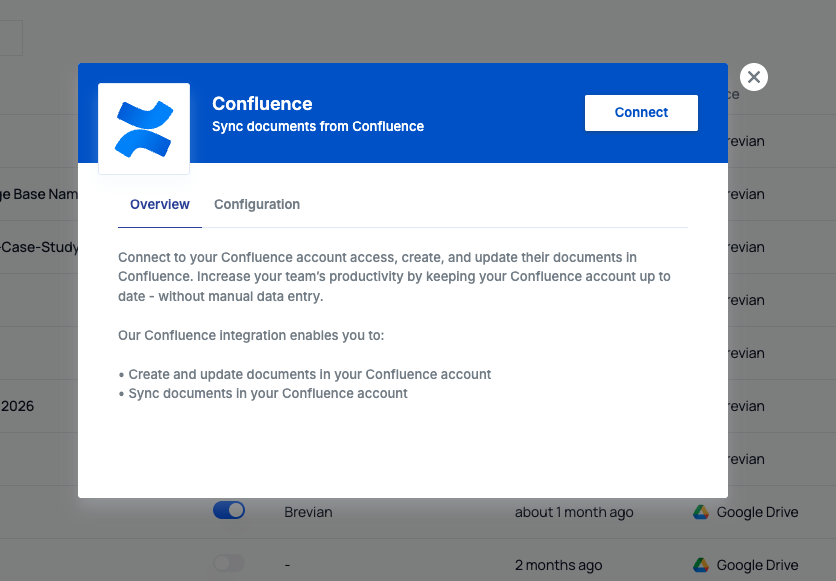
Integrate Confluence
Expand to view
To integrate Confluence:
- You must have your Confluence credentials available to connect.
- You can only integrate files you have access to.
Additional methods to integrate knowledge:
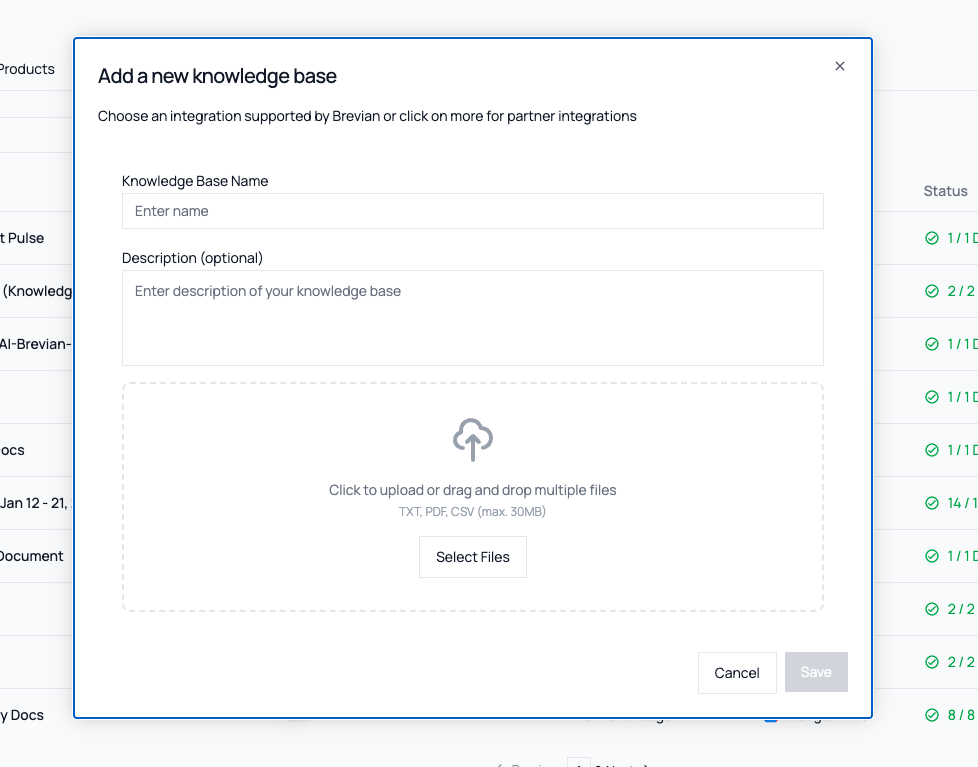
Upload local files
Expand to view
You can upload the following file types: .txt, .pdf, .csv
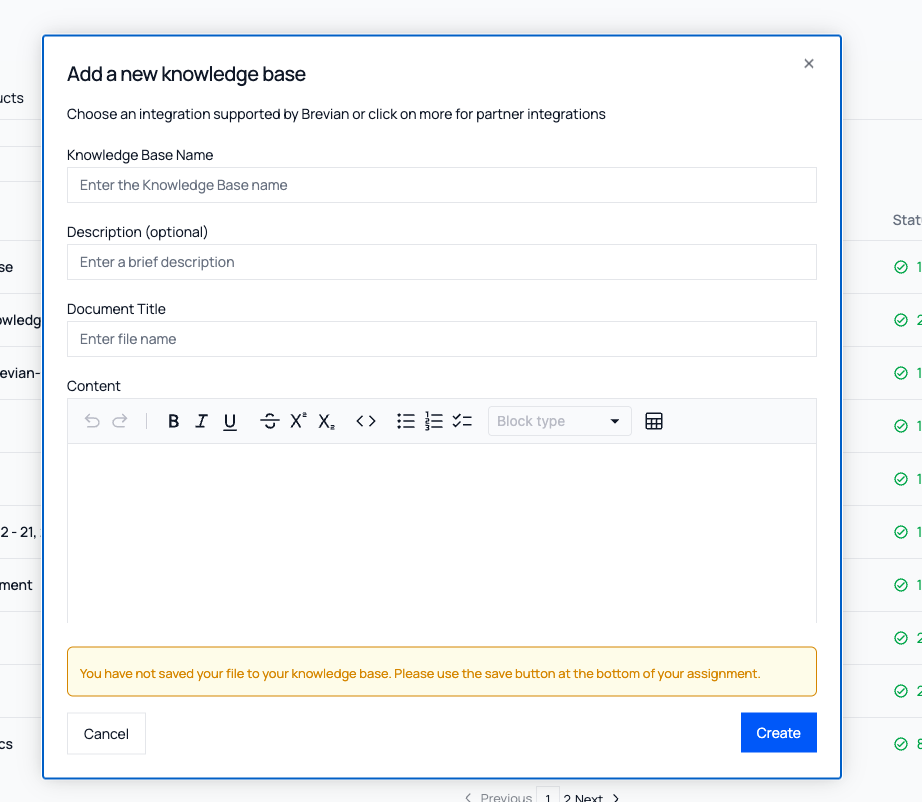
Create a new document
Expand to view
When you select + Add Knowledge Base, you can create a new document or paste content directly into the form.
Integrate CRMs:
Integrate Salesforce
Step 1: Integrate Salesforce with Brevian
Step 1.1: Create a connected app in Salesforce
- In your Salesforce account, go to Setup, and then select Open advanced settings.
- In Quick Find, search for App Manager.
- Select New Connected App, and then complete the missing fields:
- For Connected App Name, enter Brevian Integration or your preferred name.
- For API Name, enter Brevian_Integration or your preferred API name.
- For Contact Email, enter your email address.
Step 1.2: Configure OAuth settings
- Under API (Enable OAuth Settings), select Enable OAuth Settings.
- For Callback URL, enter
https://app.brevian.ai/admin/connectors.- Verify the URL for the environment you're setting up.
- Under Selected OAuth Scopes, select all entries, and then select Add.
- Select Require Secret for Web Server Flow.
- Select Require Secret for Refresh Token Flow.
Step 1.3: Set up certificate
- In a command line, run the following command to generate a new certificate:
➜ openssl req -x509 -nodes -days 365 -newkey rsa:2048 -keyout server.key -out server.crt - In Salesforce, select Use digital signatures, and then upload the generated server.crt.
Step 1.4: Authorize Brevian
- In the Policies section, select Admin Approved users are pre authorized.
- Select the policies or profile that will be used for integrating with Brevian.
Step 1.5: Create integration in Brevian
- In the Brevian app, go to Admin > Integrations.
- For Salesforce, select the plus icon, and then complete the missing fields:
- Enter your Client ID, Client Secret, and Salesforce User Email; upload the private key that was created when you generated your certificate; and then select the Environment.
- Select Connect.
Step 2: Create a dedicated Salesforce user for Brevian
Overview
Brevian’s Salesforce integration must use a dedicated Salesforce user. This user represents the Brevian application, not an individual employee, and is used to log all activity sent to Salesforce, ensuring clear audit trails while avoiding dependency on an individual employee account.
Step 2.1: Create a new Salesforce user
- In Salesforce, create a new user.
- Enter a recognizable name for the user, such as Brevian App User.
- Use an email address that is monitored, but not tied to a specific employee.
Step 2.2: Assign permissions and policies
- Apply the same roles, permissions, and policies as the currently configured Salesforce integration user.
- Verify the new user has access to all required objects and actions used by Brevian.
Step 2.3: Update the Salesforce certificate
- If your Salesforce setup uses a certificate that includes user or email information:
- Generate a new certificate using the new Salesforce user.
- Upload the updated certificate to Salesforce.
Step 2.4: Reconnect Salesforce in Brevian
- In the Brevian app, go to Admin > Integrations.
- Open the Salesforce integration.
- Reconnect the integration using:
- The new Salesforce user’s email address
- The updated certificate
Integrate HubSpot
Step 1: Obtain service key & update permissions in HubSpot
Step 1: Obtain service key & update permissions in HubSpot
To perform this integration, you must have a HubSpot account with admin permissions or permission to create private apps and access CRM data.
NOTE: In HubSpot, the term service key is used; however, in the Brevian app, the term private app token is used.
To learn more about service keys, review this HubSpot document.
Review the high-level HubSpot instructions:
- In HubSpot, go to Settings > Integrations > Service Keys or from the main sidebar, go to Development > Keys > Service Keys.
- Follow the on-screen instructions; HubSpot will generate a service key.
- Copy and save the service key. This key is only shown once.
- Select Scopes > Add new scope, and then enable the following permission to allow Brevian to sync records, track activity, and maintain accurate engagement data:
- CRM Data:
- Contacts - Read & Write
- Companies - Read & Write
- Deals - Read & Write
- Owners - Read
- Activities
- Emails - Read & Write
- Calls - Read & Write
- Meetings - Read & Write
- Notes - Read & Write
- Tasks - Read & Write
Step 2: Share service key with Brevian
Step 2: Share service key with Brevian
- In the Brevian app, go to Admin > Integrations.
- For HubSpot, select the plus icon, and then enter your Private App Token.
- Select Save Token.
- Brevian will begin syncing your HubSpot data. Explore the app to ensure your contacts, companies, deals, and activities populate.
Integrate additional external and third-party tools:
Integrate Google Calendar
Expand to view
NOTE: You can only integrate one calendar with Brevian. If you have already integrated an Outlook Calendar, then you’ll be unable to integrate a Google Calendar.
- In the Brevian app, go to Settings > Connectors.
- Select Google Calendar, and then select Connect.
- Select your Google account, and then select Continue.
- (Optional) Review what information Brevian will have access to.
- Select Continue. A green checkmark indicates a successful connection.
Integrate Outlook Calendar
Expand to view
NOTE: You can only integrate one calendar with Brevian. If you have already integrated a Google Calendar, then you’ll be unable to integrate an Outlook Calendar.
NOTE: Depending on your organization's internal policies, you may need to approve the Brevian application within Microsoft Entra before integrating Outlook calendars with Brevian. Without this approval, users will be unable to authenticate or grant calendar access.
- In the Brevian app, go to Settings > Connectors.
- Select Outlook Calendar, and then select Connect.
- Enter your credentials, then sign in, and then follow the on-screen steps.
- In the Brevian app, a green checkmark indicates a successful connection.
Integrate Gmail
Expand to view
- In the Brevian app, go to Settings > Connectors.
- Select Gmail, and then select Connect.
- Select your Google account, and then select Continue.
- (Optional) Review what information Brevian will have access to.
- Select Continue. A green checkmark indicates a successful connection.
Integrate Slack
Expand to view
- In the Brevian app, go to Settings > Connectors.
- Select Slack, and then select Connect.
- Follow the on-screen prompts to enter your workspace's Slack URL, your email, and the code sent to your email. A green checkmark indicates a successful connection.